main logo

Reconnect Your Smart Garage After a Wi-Fi Change


Published: Jun 15, 2026

It’s a familiar story. You’ve just upgraded your home internet—faster speeds, a new router, maybe a more secure password. Everything feels zippier, until you pull into your driveway and realize your smart garage door opener is suddenly not so smart. It’s disconnected, unresponsive, and has left you reaching for that old-fashioned physical remote.

You’re not alone. This is one of the most common hiccups for smart homeowners. Your garage opener was perfectly happy talking to your old Wi-Fi network, but now that the network name or password has changed, it’s like a tourist in a foreign country without a map.

The good news? Getting it reconnected is usually a simple process, and you don’t need to be a tech expert to do it. This guide will walk you through every step, for any brand, from the straightforward app method to a little-known manual trick for when things get stubborn.
The Pre-Flight Checklist: 4 Things to Do Before You Begin


Setting yourself up for success can turn a potentially frustrating task into a two-minute job. Before you climb that ladder, run through this quick checklist:
  • 1. Know Your Wi-Fi Password: This sounds obvious, but you’d be surprised. Write down the password for your new Wi-Fi network. Remember, it’s case-sensitive.
  • 2. Stay Close to the Opener: Your smartphone needs to communicate with the garage door opener motor unit during setup. Stand in the garage, near the motor, for the strongest connection.
  • 3. Enable Bluetooth on Your Phone: Many modern openers use Bluetooth to simplify the initial handshake during Wi-Fi setup. Make sure it’s turned on.
  • 4. Confirm Your 2.4 GHz Network: Nearly all smart garage openers operate on a 2.4 GHz Wi-Fi band. Modern routers often broadcast both 2.4 GHz and 5 GHz networks. Ensure your phone is connected to the 2.4 GHz network before you begin, as the opener won't be able to see or connect to the 5 GHz band.

With these things ready, you’re prepared for a smooth reconnection.

The 2-Minute App Method (Works for 80% of Users)


For most people, this is all you’ll need to do. Manufacturers have designed their apps to make this process as painless as possible. While the exact menu names might differ slightly between brands like myQ, Aladdin Connect, or Ryobi, the principle is the same.
Here’s the general process:
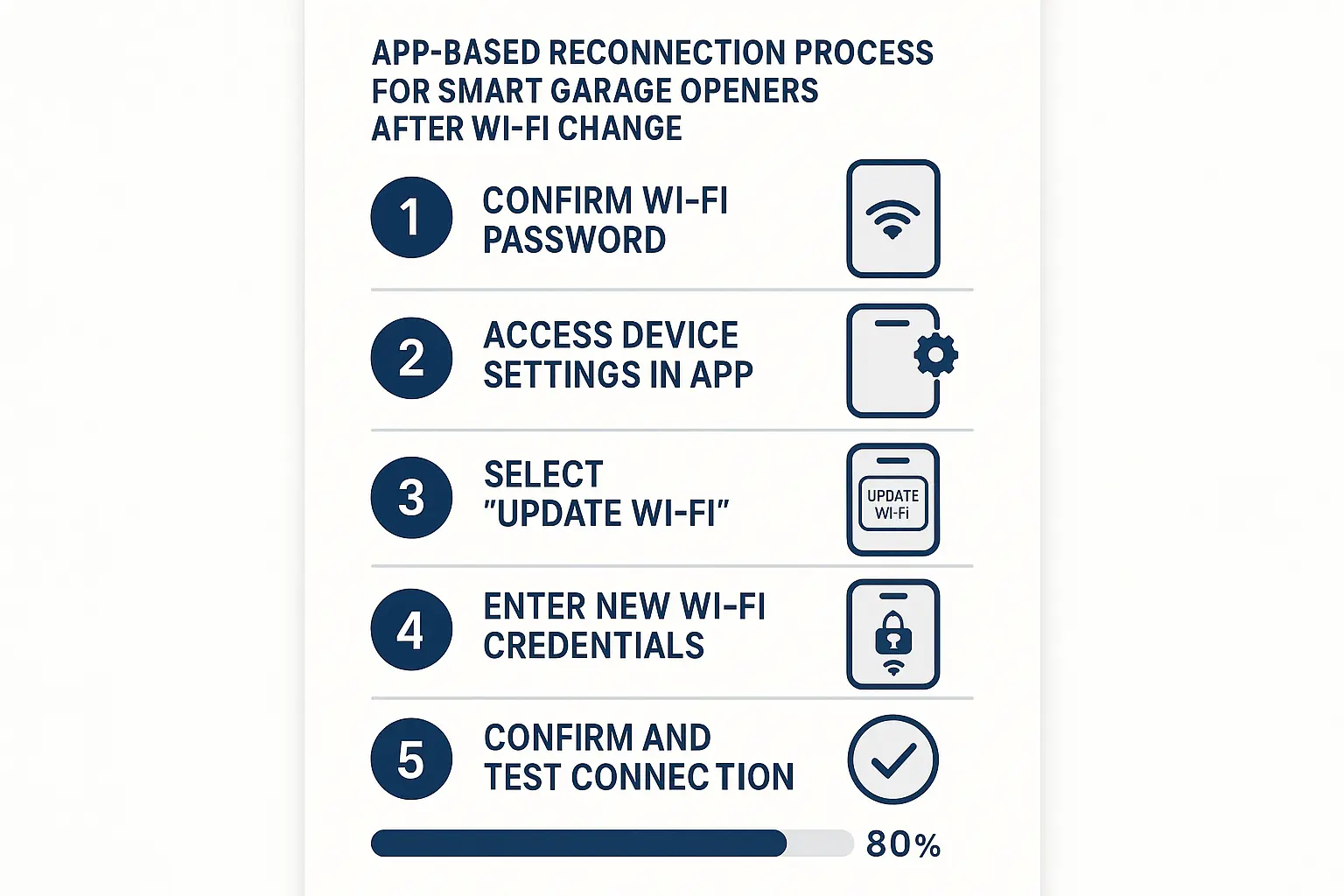
An easy-to-follow app reconnection process that works for most smart garage opener users, helping you get online swiftly and confidently.

  • 1. Open Your Opener’s App: Launch the app you use to control your garage door (e.g., myQ, Aladdin Connect).
  • 2. Find Your Device Settings: Navigate to the specific garage door opener within the app. Look for a gear icon, a "Device Settings" menu, or an "Edit" option.
  • 3. Locate the Wi-Fi Menu: Inside the device settings, you should see an option labeled "Wi-Fi," "Update Wi-Fi Settings," or "Change Network."
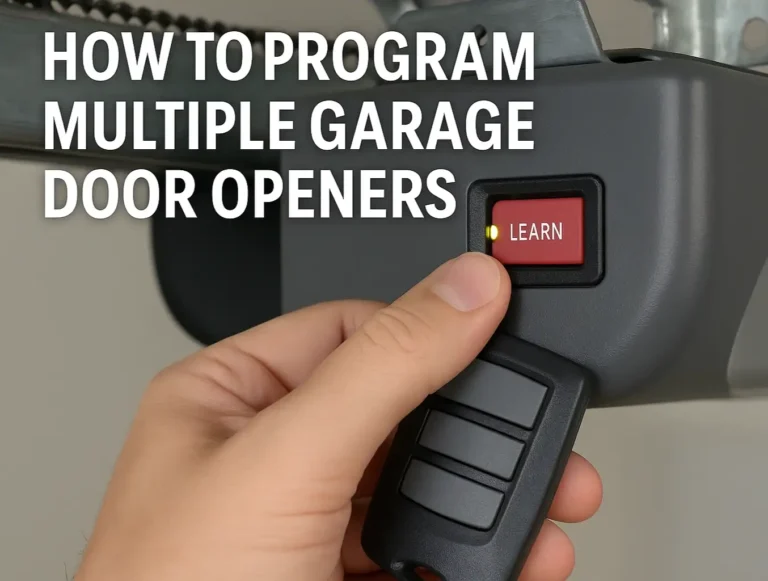
  • 4. Follow the On-Screen Prompts: The app will now guide you through the process. It will typically ask you to press the "Learn" button on your garage door opener motor to put it into Wi-Fi setup mode. Once you do, the app will search for available networks.
  • 5. Select Your New Network and Enter the Password: Choose your new home Wi-Fi network from the list and carefully type in your new password.
What Success Looks Like: ✅ The LED light on your opener should change from blinking to solid (usually blue or green). Your app will confirm the connection is successful. That’s it! You’ve re-established the connection and helped make my garage door smart again.
An easy-to-follow app reconnection process that works for most smart garage opener users, helping you get online swiftly and confidently.

When the App Fails: The Manual Reconnect Method


Sometimes, the app just won't cooperate. It might not find your Wi-Fi network, or it may time out repeatedly. This is where most people get stuck, but there’s a fantastic workaround that almost always succeeds.

This "secret" method involves connecting your phone directly to a temporary Wi-Fi network broadcast by the garage door opener itself.
Here’s how to do it:
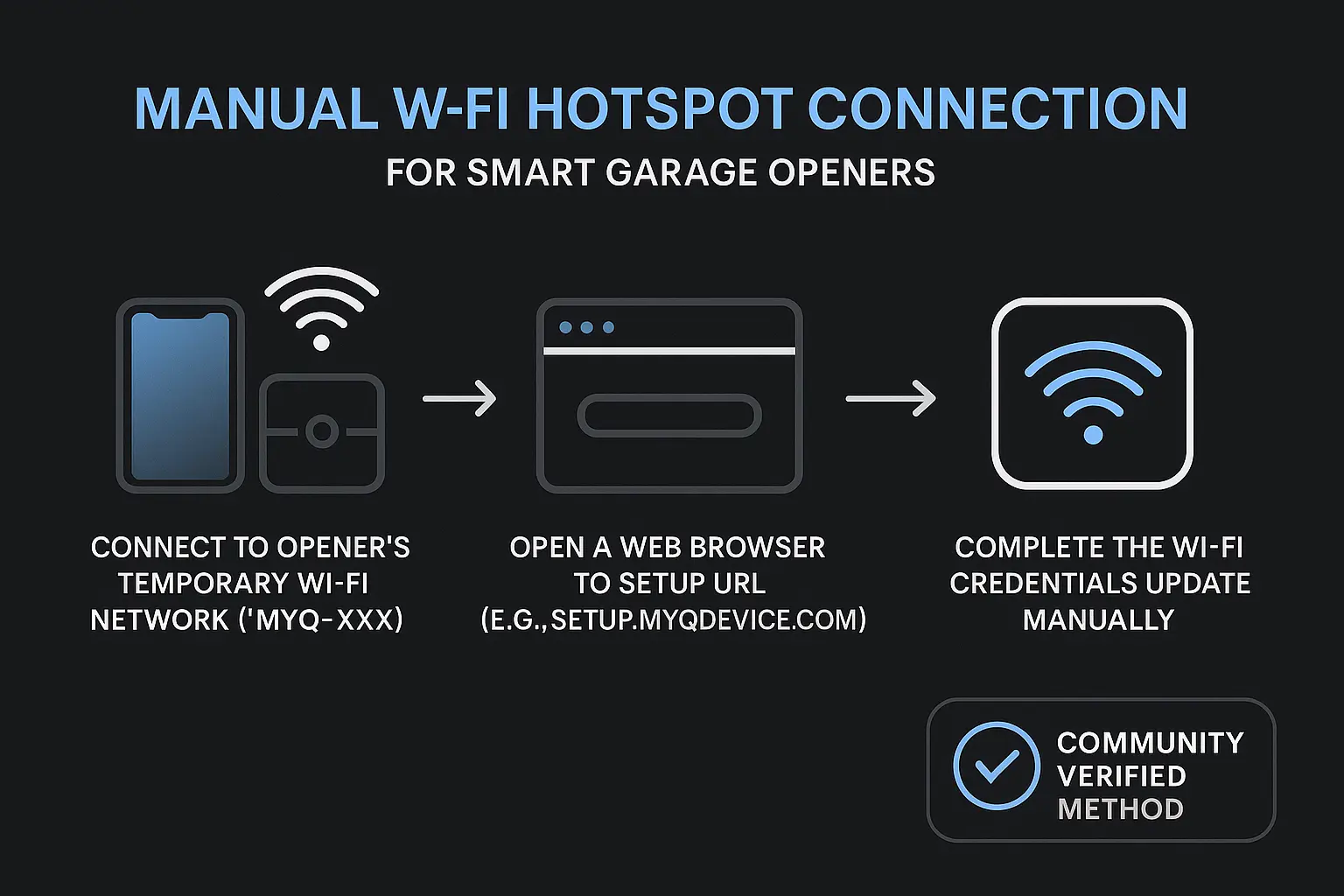
A trusted manual Wi-Fi setup process for when app reconnection fails, offering a reliable alternative to keep your garage opener connected.

  • 1. Activate Wi-Fi Setup Mode on the Opener: Press the "Learn" button on your motor unit (usually 3 times, but check your model) until you hear a beep and see a blinking blue light. This tells you the opener is now broadcasting its own temporary Wi-Fi network.
  • 2. Go to Your Phone's Wi-Fi Settings: Open the Wi-Fi settings on your smartphone or laptop, just like you would at a coffee shop.
  • 3. Connect to the Opener's Network: Look for a new, open network in your list. It will typically be named something like MyQ-XXX or Aladdin-XXX. Connect to it. Your phone may warn you that this network has no internet access—that's normal.
  • 4. Open a Web Browser: Once connected, open a web browser (like Chrome or Safari) on your phone. In the address bar, type setup.myqdevice.com (for myQ/Chamberlain/LiftMaster) or the IP address specified in your manual (often 192.168.1.1).
  • 5. Configure from the Webpage: This will load a simple setup page served directly from your garage opener. Here, you can scan for your home Wi-Fi network, select it, and enter the password.
  • 6. Confirm and Reconnect: After you save the settings, the opener will disconnect from your phone and connect to your home network. Don't forget to switch your phone’s Wi-Fi back to your home network.
This process might seem more technical, but it’s a direct and reliable way to get things working. It’s important to note this is simply a Wi-Fi reset, not a full factory reset. If you’re ever unsure about the difference, learning how to reset a garage door opener properly can save you from accidentally erasing remotes and keypads.
A trusted manual Wi-Fi setup process for when app reconnection fails, offering a reliable alternative to keep your garage opener connected.

A Visual Guide to Finding Your Opener's "Learn" Button


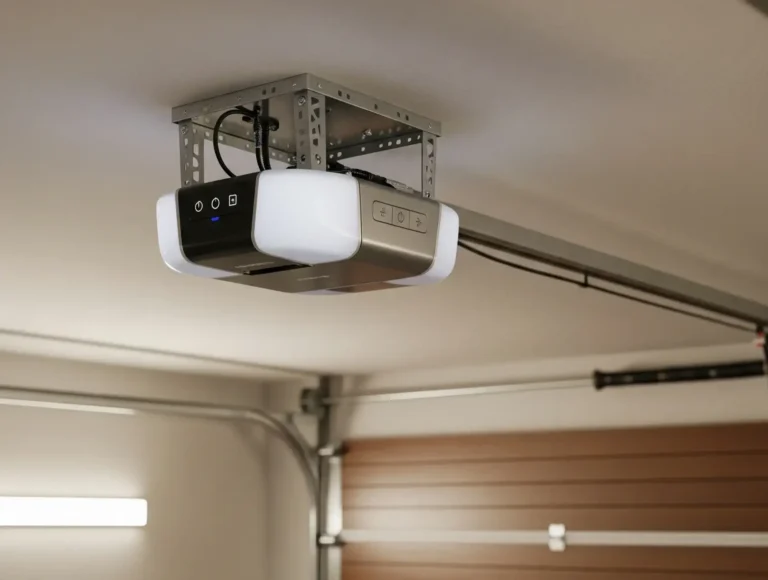
The most critical physical step in this process is pressing the "Learn" or "Program" button. But where is it? Its location and color can vary by brand and model, but they are almost always on the motor unit hanging from your ceiling.
  • Chamberlain / LiftMaster / Craftsman: Look for a square button, typically colored yellow, purple, red/orange, or green. It’s often located on the back or side of the motor unit, near the antenna wire.
  • Genie / Overhead Door: This is usually a small black button labeled "Program" or "Learn Code." It’s often found behind the light cover.
  • Ryobi: The programming buttons are typically grouped together on the side of the unit and are clearly labeled.
If you're ever struggling to locate it, our detailed guide on where is the learn button on garage door opener models can provide more specific visuals.

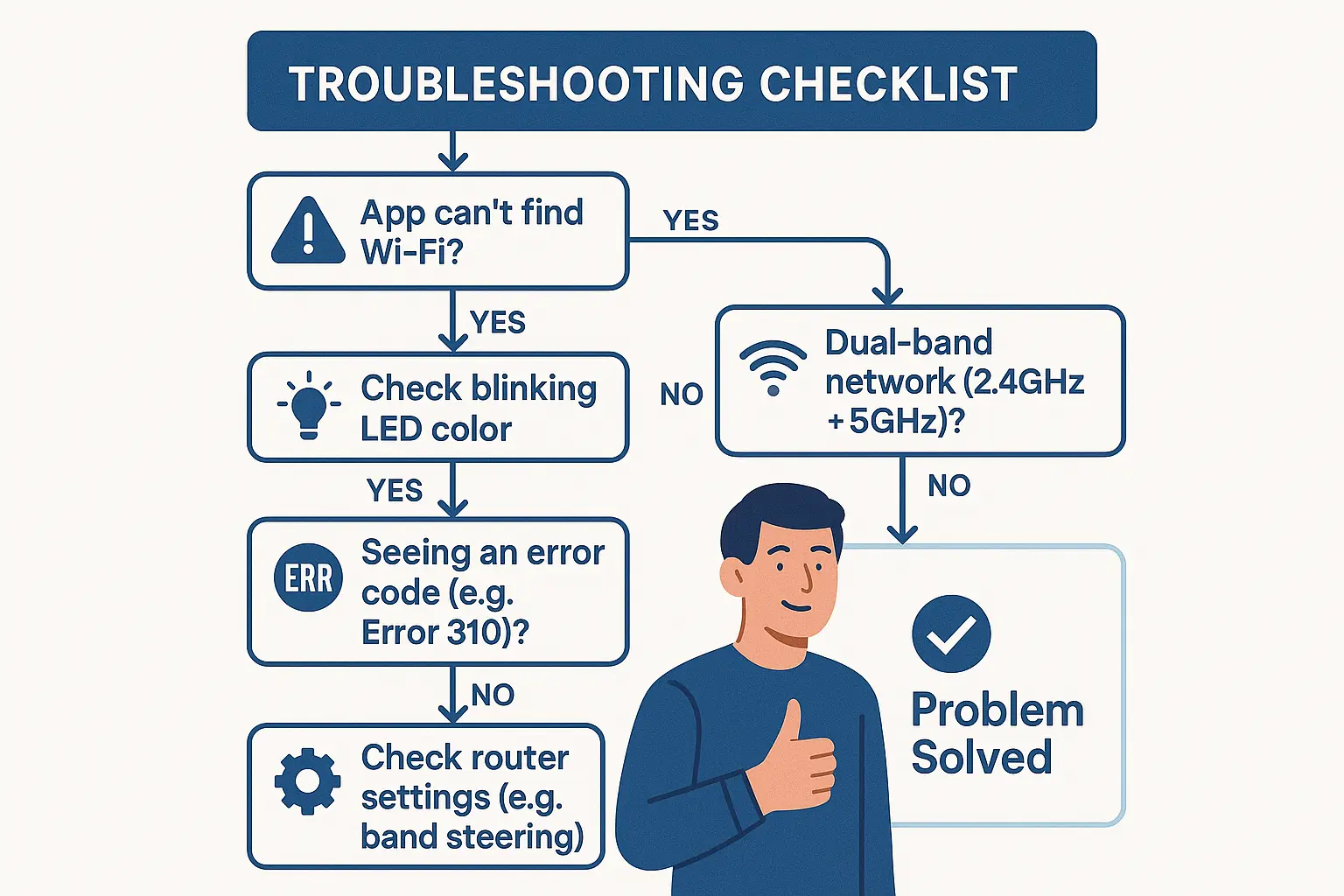
Still Stuck? Your Ultimate Troubleshooting Checklist


If you've tried both methods and your opener still won't connect, don't worry. The issue is likely a simple setting. Go through this checklist to diagnose the problem.

Is your Wi-Fi signal strong enough in the garage?

Sometimes a new router's placement results in a weaker signal. Stand in your garage with your phone and check how many Wi-Fi bars you have. If it's only one or two, you may need a Wi-Fi extender.

Are you sure you’re using the 2.4 GHz network?

This is the #1 cause of failure. If your router uses "band steering" (one network name for both 2.4 GHz and 5 GHz), your phone might be on the 5 GHz band, preventing the app from seeing the right network. Try temporarily disabling the 5 GHz band in your router's settings during setup.

Did you type the password correctly?

Double-check for typos and case sensitivity. It’s an easy mistake to make.

Is there a firewall or parental control blocking the device?

Some advanced router settings can prevent new devices from joining the network. Check your router's app or admin panel to ensure the garage opener isn't being blocked.
A step-by-step troubleshooting flowchart to resolve common Wi-Fi reconnection problems, helping you overcome hurdles and reconnect with confidence.

Have you tried a quick power cycle?

The classic "turn it off and on again" works wonders. Unplug your garage door opener from the ceiling outlet, wait 30 seconds, and plug it back in. Then, try the setup process again.

If your device is online but still not working correctly, it might be a mechanical or electrical issue. Our general guide can help you fix garage door opener problems beyond connectivity.

A step-by-step troubleshooting flowchart to resolve common Wi-Fi reconnection problems, helping you overcome hurdles and reconnect with confidence.

FAQ: Your Top Questions About Reconnecting Your Garage Opener


Will I have to reprogram my remotes and keypad after reconnecting to Wi-Fi?

No. Resetting the Wi-Fi is a separate function from clearing the opener's memory. Your existing remotes, keypads, and travel limits will not be affected.

Why can't my garage opener just use the 5 GHz Wi-Fi band?

The 2.4 GHz band, while sometimes slower, has a much longer range and is better at penetrating walls and other obstructions—like the ones between your router and your garage. For a low-data device like a garage opener, range and reliability are more important than speed.

The app is giving me an error code. What does it mean?

Error codes are manufacturer-specific. A quick search for your brand and the error number (e.g., "myQ error 310") will usually lead you to a support page explaining the specific issue. It often relates to a weak signal or incorrect password.

Can I still use my regular remote if the Wi-Fi is down?

Absolutely. Your physical remotes and wall-mounted button communicate directly with the opener via radio frequency and do not depend on Wi-Fi. It’s also a good reminder to know how to program a universal remote as a reliable backup.
Reconnecting your smart garage door opener is a manageable task that puts the convenience back in your hands. By following these steps, you can get your system back online and enjoy the security and ease of a fully connected smart home.

You may also like


blog photo

Network Setup Checklist for Smart Garage Systems

You’ve got the box. You’re excited about the convenience of opening your garage from anywhere and getting delivery notifications. You set aside an hour for what should be a straightforward installation. But then it happens: the dreaded "Connection Failed" error. The blinking lights mock you. The app won't find the device. An hour of excitement turns into an evening of frustration.Sound familiar? It's a surprisingly common story. Most setup failures for smart garage openers have nothing to do with a faulty device. They stem from a home Wi-Fi network that wasn’t quite ready for its new job.This is the 5-minute pre-flight check that can save you that hour of frustration. Before you even open the box, let's walk through a few simple steps to ensure your network is perfectly prepared, making your installation a breeze.