If you’re trying to connect your Ryobi garage door opener to your home Wi-Fi and feel like you’re about to launch your remote through the drywall, take a deep breath. You’re not alone, and it’s probably not your fault. This particular smart opener is known for having a tricky setup process, but the good news is that most connection failures boil down to one or two common, fixable issues.
This guide is your complete roadmap. We’ll walk through the ideal setup process, then dive into the real-world troubleshooting steps that have helped thousands of other homeowners get their opener online.
Connecting Ryobi Garage Door Opener to Home Wi-Fi: A Setup Guide
Published: Jun 16, 2026 | Updated: Jul 28, 2026
Foundation: The 'Perfect World' Setup
Let’s start with how the connection process is supposed to work. Following these steps precisely is the first and most important part of troubleshooting.
If this worked for you, congratulations! If not, welcome to the club. Let’s start fixing it.
The Ultimate Troubleshooting Checklist: When Things Go Wrong
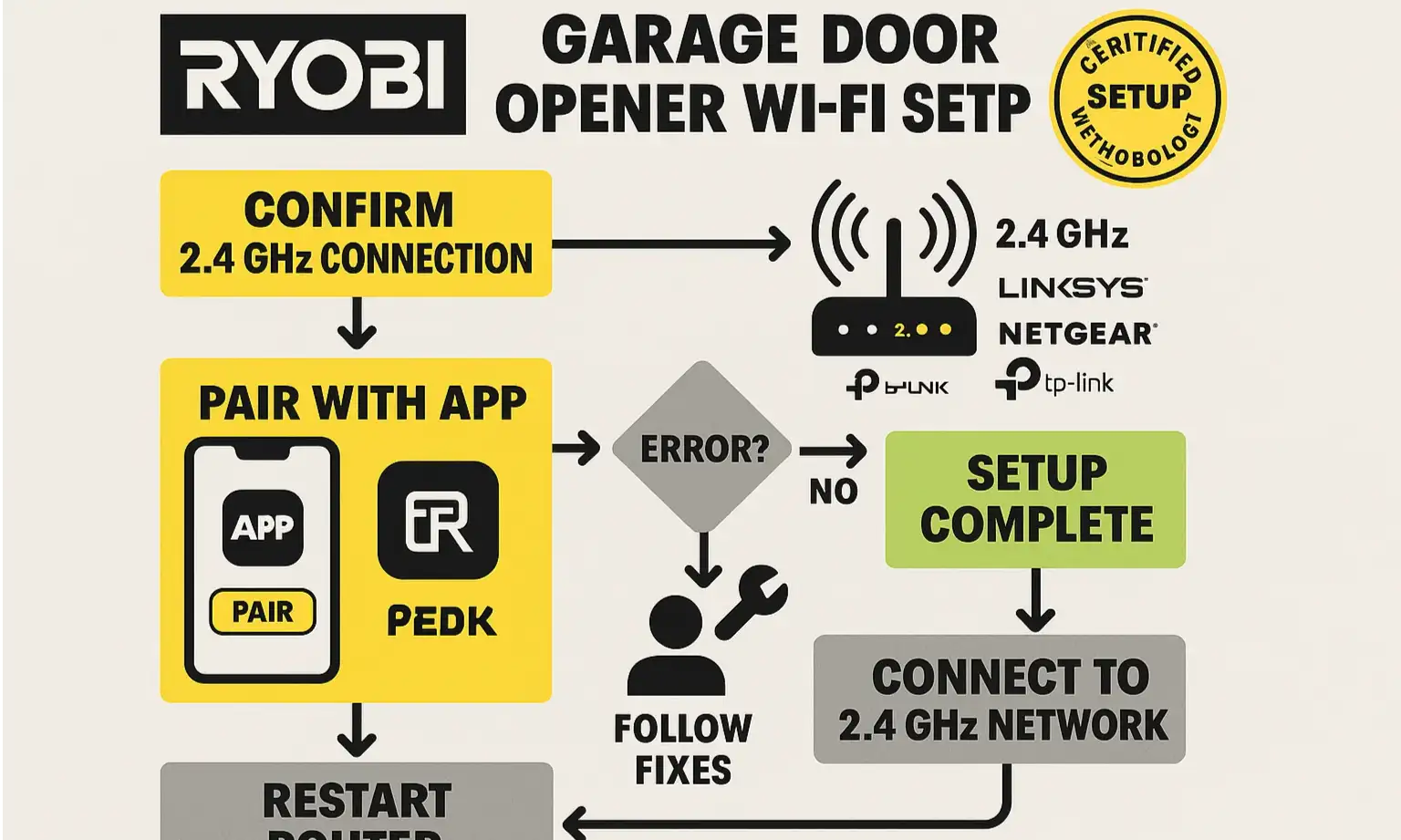
Work through these common failure points one by one. The vast majority of connection issues are solved here.
Problem #1: The “RYOBI” Wi-Fi network never appears on my phone.
If you can’t see the opener’s temporary network, the setup can’t even begin.
Solution: Ensure the opener is truly in pairing mode. A slow, flashing light is what you’re looking for. If you don’t see it, try a full reset. Unplug the opener for 30 seconds, plug it back in, then press and hold the Wi-Fi button again until you hear the beep.
Problem #2: The app freezes, gets stuck, or says the connection failed.
This is the most common and frustrating step. The cause is almost always related to your home network’s configuration.
Problem #3: It connects successfully but keeps disconnecting later.
A successful setup followed by constant drops points to a weak or unstable Wi-Fi signal.
Mastery: Advanced Scenarios & Deep Dives
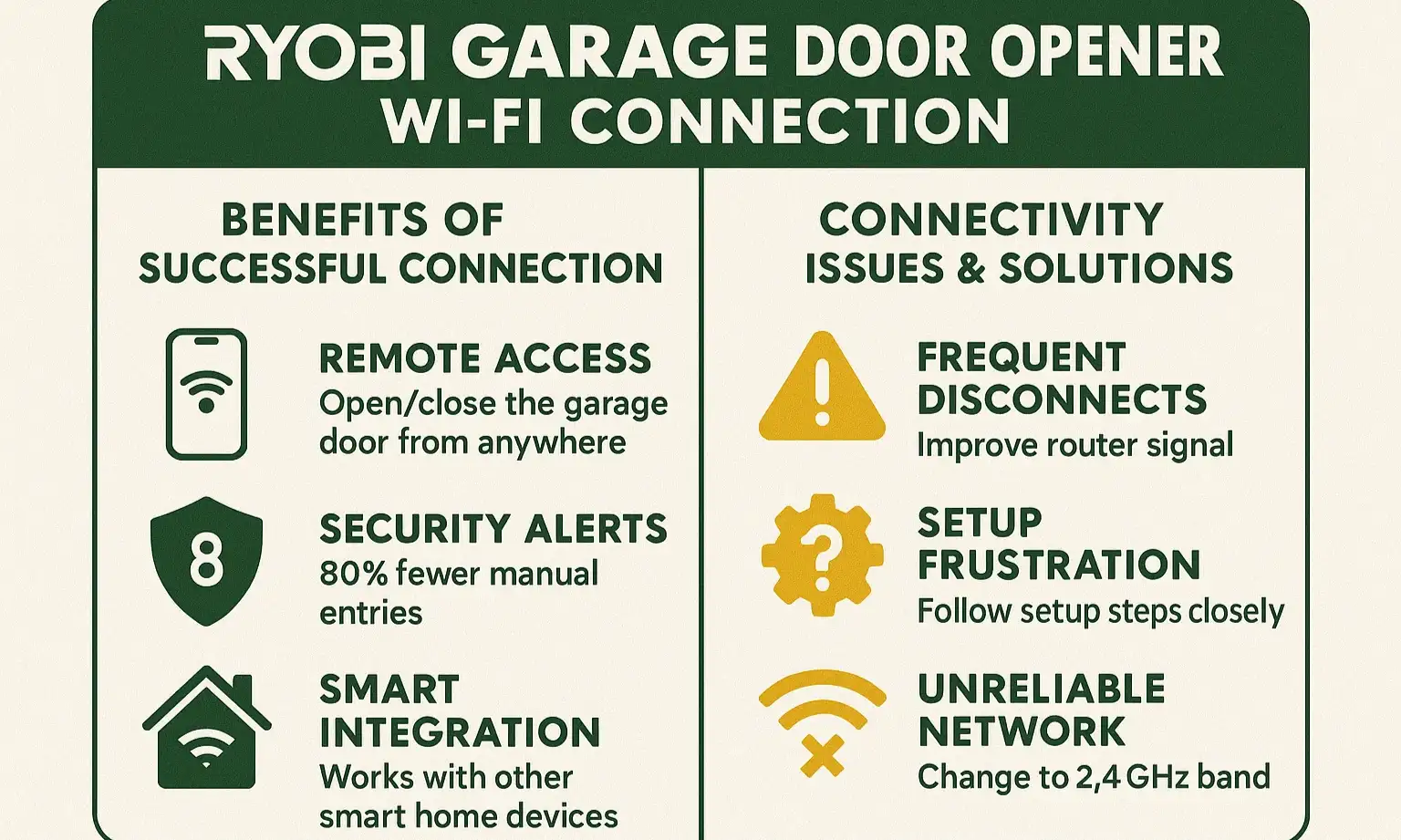
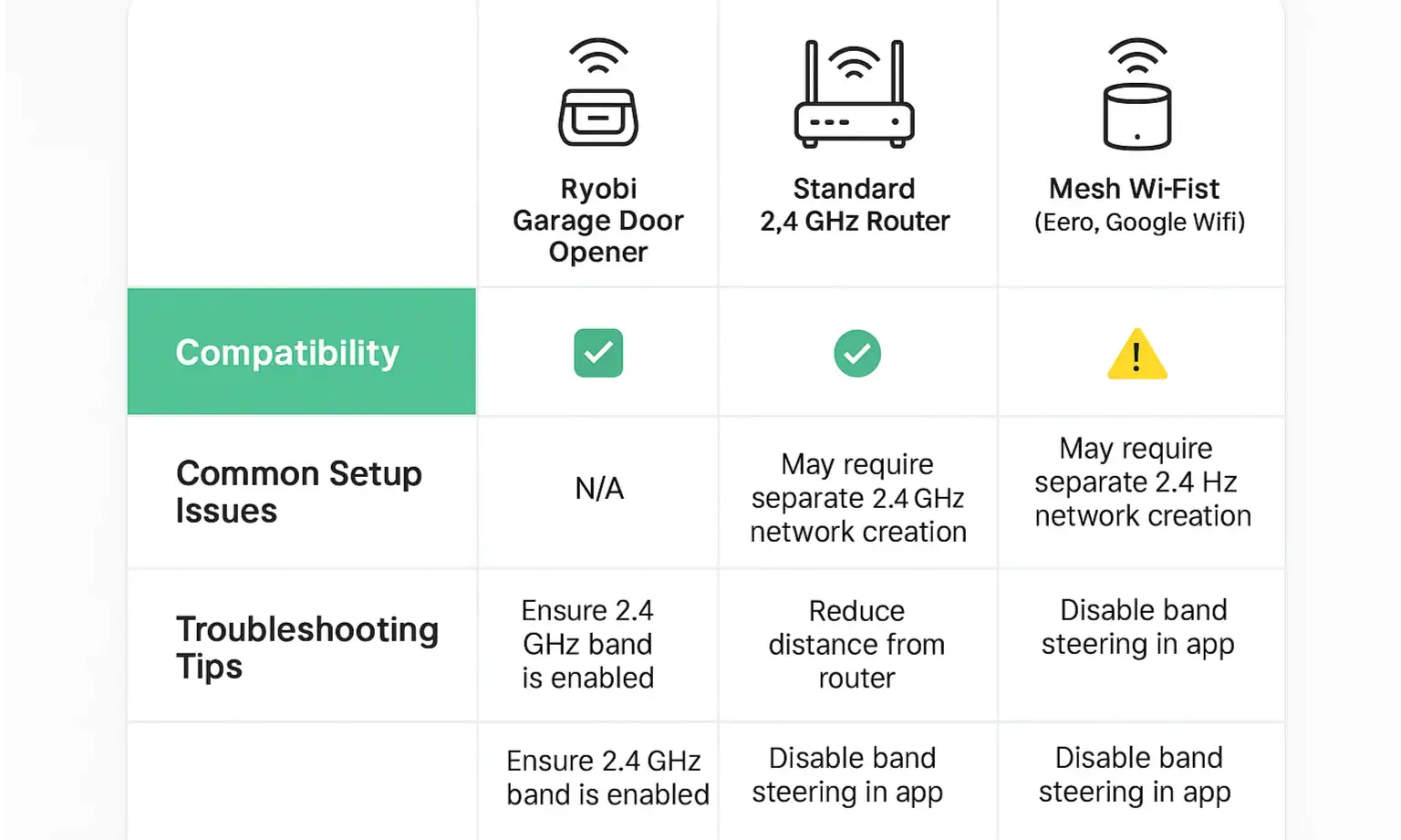
Think of Wi-Fi bands like highways. The 5 GHz band is a super-fast, multi-lane freeway, but it has a shorter range. The 2.4 GHz band is more like a state highway—slower, but it reaches much farther and is better at getting through walls. Your Ryobi opener can only drive on the 2.4 GHz highway.
The Fix: You need to force your phone onto the 2.4 GHz band before you start the setup process.
The Fix: You need to force your phone onto the 2.4 GHz band before you start the setup process.
For Separate Networks: If your router creates two distinct Wi-Fi networks (e.g., “MyHomeWiFi” and “MyHomeWiFi-5G”), simply connect your phone to the one that does not have “5G” in the name.
For Combined (Mesh) Networks: If you have one network name for both bands (common with Eero, Google Wifi, etc.), you have two options:
For Combined (Mesh) Networks: If you have one network name for both bands (common with Eero, Google Wifi, etc.), you have two options:
Conquering Mesh Networks (Eero, Google Wifi, Orbi)
Mesh systems are fantastic for whole-home coverage but can be tricky for simple smart devices. Their “band steering” feature, which automatically pushes devices to the 5 GHz band, is the primary enemy of your Ryobi opener. Using the “pause 5 GHz” or “walk away” method described above is the key to success. Understanding these settings is a core part of the journey to make my garage door smart and keep it working reliably.
Action: Last Resorts & Next Steps
If you’ve tried everything above and are still stuck, it’s time for an honest assessment. The Ryobi garage door system has been discontinued, and app support can be inconsistent. While it’s a great piece of hardware when it works, its connectivity is a well-documented weak point.
Your final checklist:
Your final checklist:
If the answer to all of these is “yes” and it still won’t connect, you may be facing a hardware failure. At this point, you could look into ensuring your standard garage door remote compatibility is solid for manual use or consider upgrading. When looking for a replacement, focusing on the best energy efficient garage doors 2026 systems can provide a more reliable and modern smart home experience.
Frequently Asked Questions (FAQ)
Why does my Ryobi opener only use 2.4 GHz Wi-Fi?
The 2.4 GHz frequency is lower-cost to implement, has a longer range, and is better at penetrating walls and garage doors—all ideal for a device in a garage. Most simple smart home gadgets (plugs, bulbs, openers) use 2.4 GHz for these reasons.
How do I reset the Wi-Fi on my Ryobi opener?
Unplug the main unit from power for 30 seconds. Plug it back in. Then, press and hold the Wi-Fi button on the unit for 5-7 seconds until you hear a beep and the LED light starts flashing again. This clears any old network settings.
Is the Ryobi garage door opener app still supported?
While the app is still available on app stores, the product line has been discontinued by Ryobi. This means updates and bug fixes are rare, and long-term support is not guaranteed.
What do I do if my opener is too far from my router?
The easiest solution is a Wi-Fi range extender. Place it in an outlet halfway between your router and the garage. This will boost the signal and provide a much more stable connection for your opener.
Frequently Asked Questions
Why does my Ryobi opener only use 2.4 GHz Wi-Fi?
The 2.4 GHz frequency is lower-cost to implement, has a longer range, and is better at penetrating walls and garage doors—all ideal for a device in a garage. Most simple smart home gadgets (plugs, bulbs, openers) use 2.4 GHz for these reasons.
How do I reset the Wi-Fi on my Ryobi opener?
Unplug the main unit from power for 30 seconds. Plug it back in. Then, press and hold the Wi-Fi button on the unit for 5-7 seconds until you hear a beep and the LED light starts flashing again. This clears any old network settings.
Is the Ryobi garage door opener app still supported?
While the app is still available on app stores, the product line has been discontinued by Ryobi. This means updates and bug fixes are rare, and long-term support is not guaranteed.
What do I do if my opener is too far from my router?
The easiest solution is a Wi-Fi range extender. Place it in an outlet halfway between your router and the garage. This will boost the signal and provide a much more stable connection for your opener.