Setting Up Multiple Smart Garage Openers on One Wi-Fi
Published: Jun 15, 2026
Suddenly, the dream of smart home simplicity can feel complicated. You find yourself asking: "Can I even control two garage doors from one app? Do I need to buy a whole new system?"
You're in the right place. The answer is a resounding yes, and it’s easier than you think. This guide will walk you through everything you need to know, clearing up the confusion so you can get the seamless, one-app control you've been looking for.
Foundation: First, Let's Identify Your Setup
Before you touch a single setting, the most important step is to understand what kind of hardware you're working with. Getting this right from the start saves a massive amount of time and frustration. Nearly every setup issue stems from confusing these two scenarios.
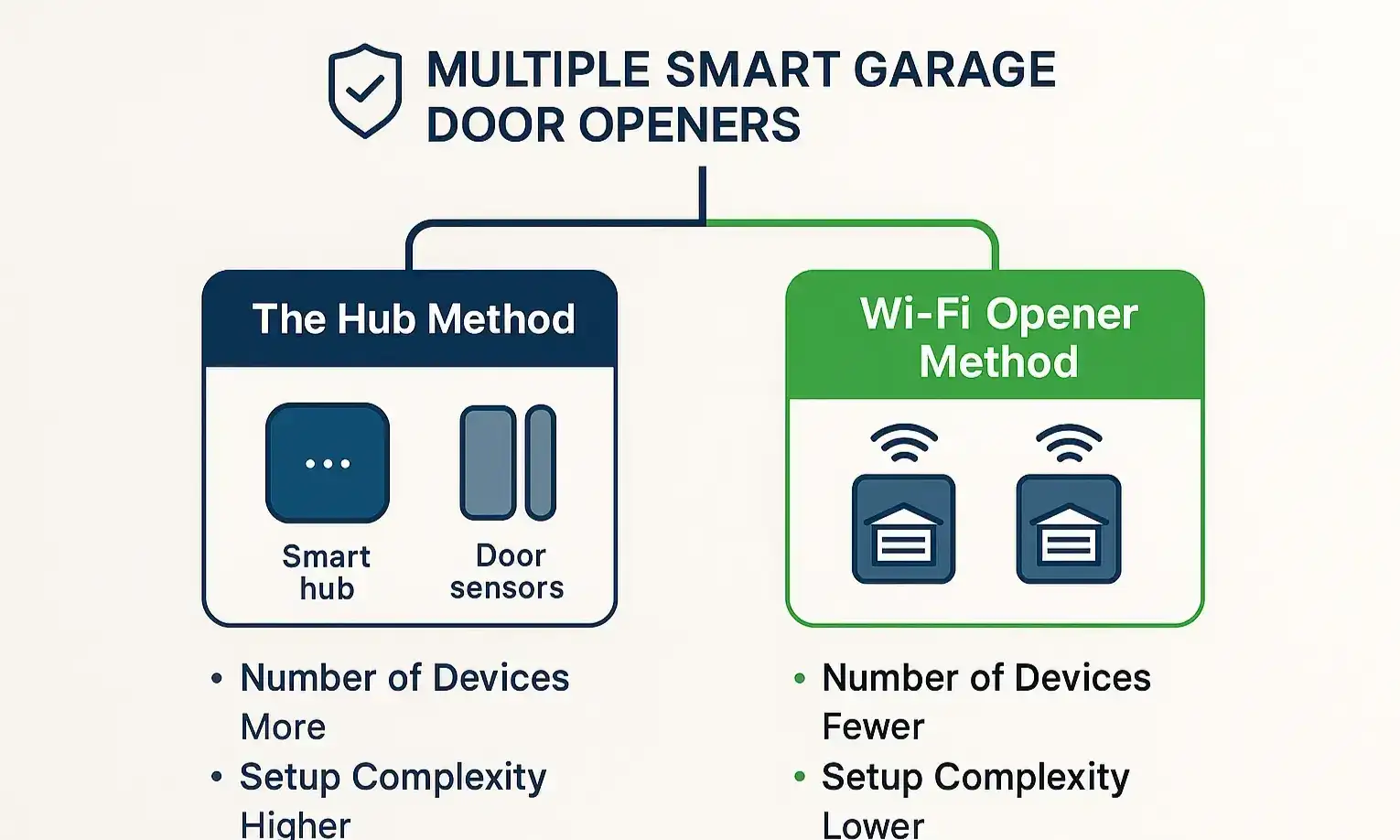
There are two main ways to control multiple doors:
1. The Hub Method: You have one "smart hub" (like a MyQ Smart Garage Control) that acts as a bridge. This hub connects to your Wi-Fi and then communicates with your existing, non-smart garage door openers. To add a second door, you simply add a second door sensor.
2. The Wi-Fi Opener Method: You have two (or more) separate garage door openers that each have Wi-Fi technology built directly into the motor unit. There is no central hub needed; each opener connects to your home's Wi-Fi network independently.
Once you know which path you're on, the next steps become crystal clear.
Building: Your Step-by-Step Setup Guide
Depending on your hardware, your setup process will be different. Below are the two distinct paths for getting your multi-door system online.
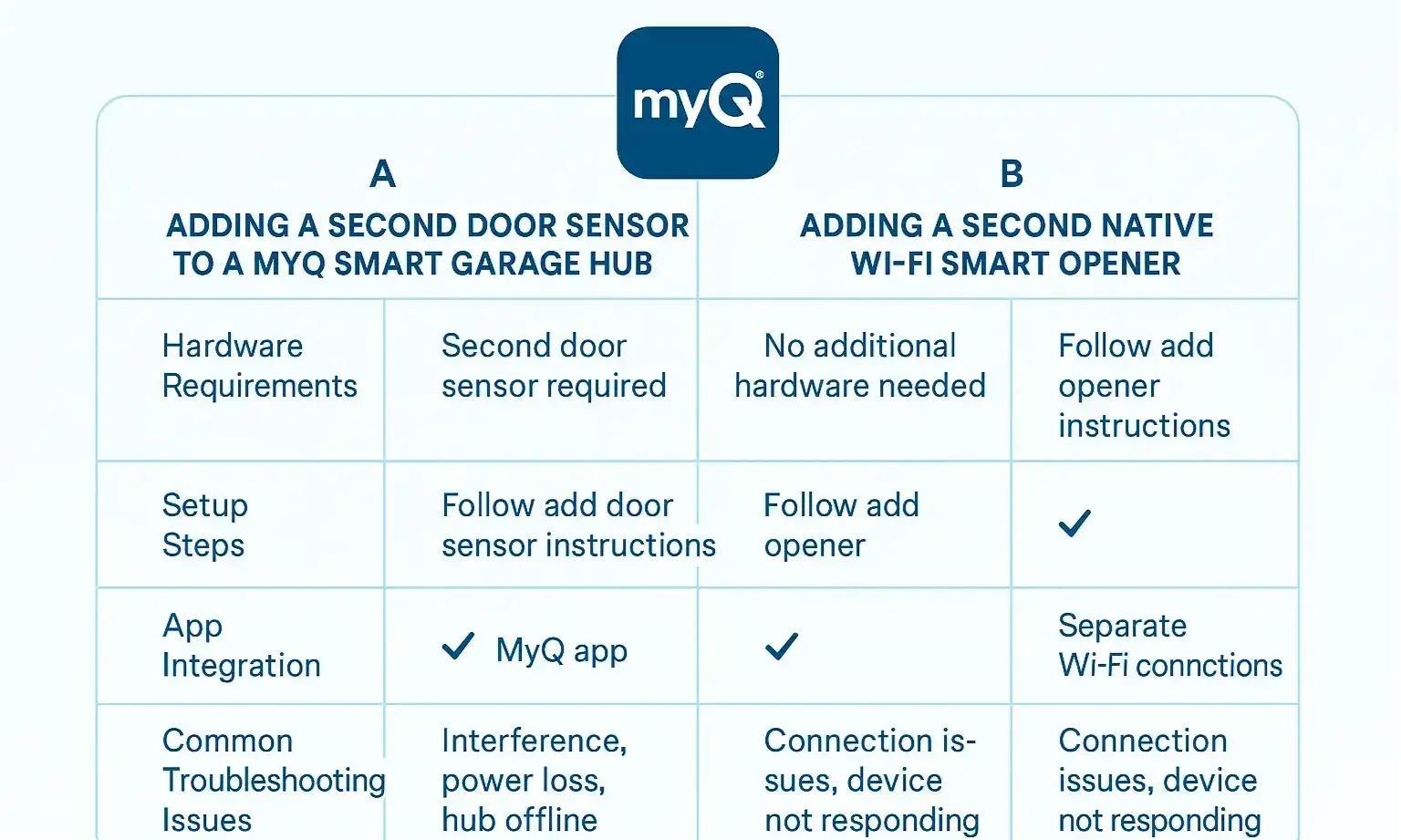
Path A: The Hub Method (Adding a Second Door Sensor)
If you have a smart hub like the MyQ Smart Garage Control, your first door is already set up. Adding the second involves pairing a new door sensor with your existing hub.
- Acquire a Second Door Sensor: You’ll need an additional door sensor compatible with your hub (e.g., a MyQ add-on door sensor). Make sure it’s the correct model for your system.
- Open Your App: Launch the app (MyQ, Aladdin Connect, etc.) on your smartphone.
- Add a New Device: Navigate to the "Device Management" or "Add New" section. Look for an option like "Add Hub" or "Door Sensor."
- Follow In-App Prompts: The app will guide you through the process. It will likely ask you to press the "test" button on the new sensor to activate it for pairing.
- Mount the Sensor: Once the app confirms the sensor is paired, mount it to your second garage door according to the manufacturer's instructions. Proper placement is crucial for accurate open/close readings. Should you ever need to replace the myq garage door sensor battery, it's a straightforward process.
Common Mistake Callout: During this process, the app will pair the sensor to the hub. It will then guide you to press the "Learn" button on your second garage door opener motor. Do not press the learn button on the opener you've already set up. This can cause the hub to activate both doors simultaneously.
Path B: The Wi-Fi Opener Method (Adding a Second Smart Opener)
This method is often more straightforward because you're simply adding another independent device to your account, much like adding another smart lightbulb to your home. The advantages of Wi-Fi enabled garage door openers often include a simpler setup process
- Open Your App: Launch the smart garage app you already use.
- Initiate "Add Device": Find the option to add a new device. This is typically a "+" icon or a menu item labeled "Add Device" or "Add Garage Door Opener."
- Select Your Opener Type: The app will ask what kind of device you're adding. Choose "Garage Door Opener with Wi-Fi."
- Press the Learn Button: The app will instruct you to press the "Learn" or "Pair" button on your second garage door opener's motor unit. This is usually a yellow or purple square button.
- Connect to Wi-Fi: Follow the prompts to connect the new opener to your home Wi-Fi network. You'll likely select your network name and enter the password.
- Name Your Door: Once connected, give your new door a unique name (e.g., "Right Door," "Workshop Door") to easily distinguish it from the first one.
Mastery: Pro-Tips for Multi-Door Management
Getting your doors connected is the first step. Managing them effectively is the next. Here are a few tips to create a truly seamless experience.
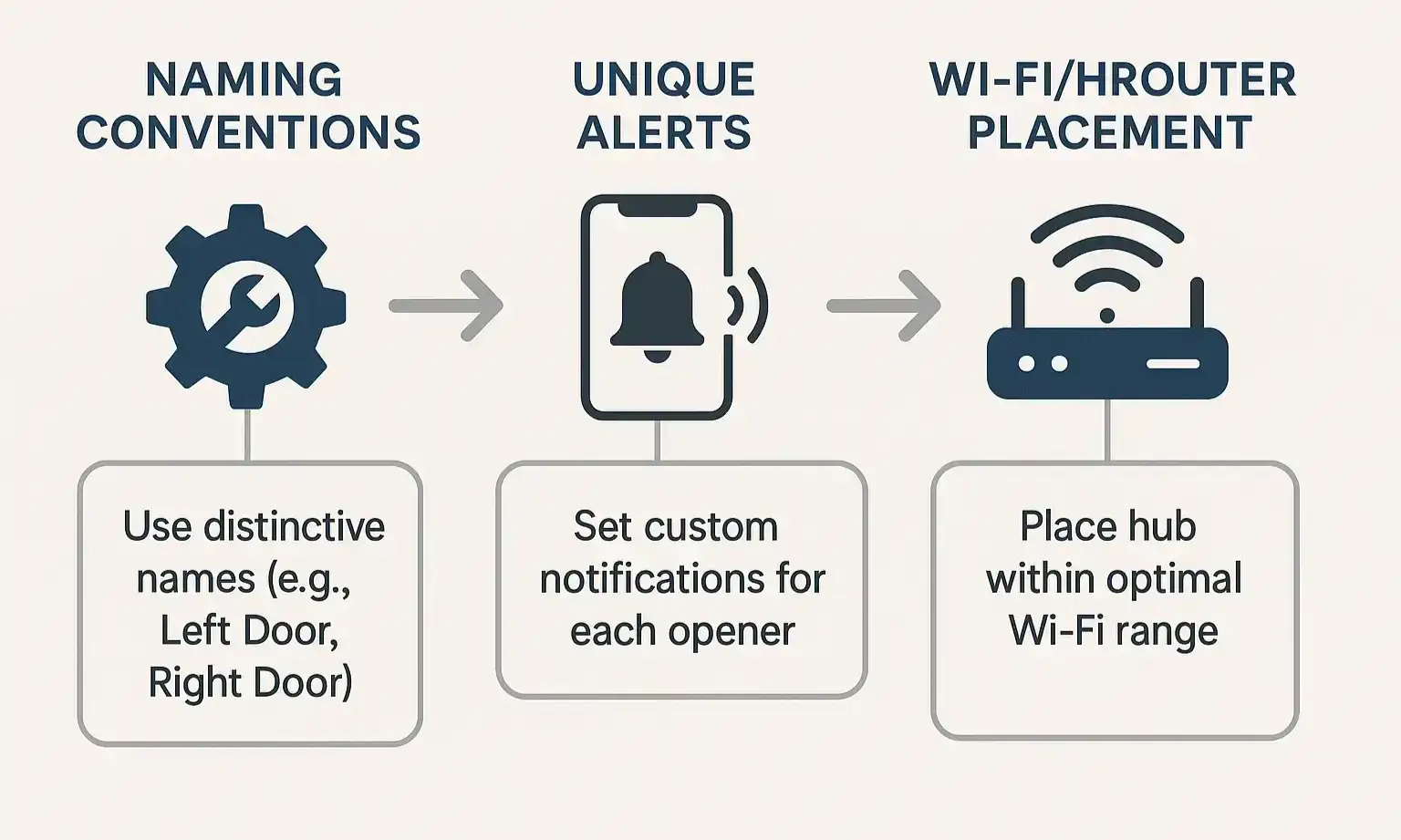
- Be Specific with Naming: Avoid generic names like "Garage 1" and "Garage 2." Use descriptive labels like "Main Garage," "John's Bay," or "SUV Door" so you know exactly which door you're controlling at a glance.
- Customize Your Alerts: Set up unique notifications for each door. For example, you might want an alert if the "Main Garage" is left open for more than 10 minutes, but not for the "Workshop Door" which you often leave open while working.
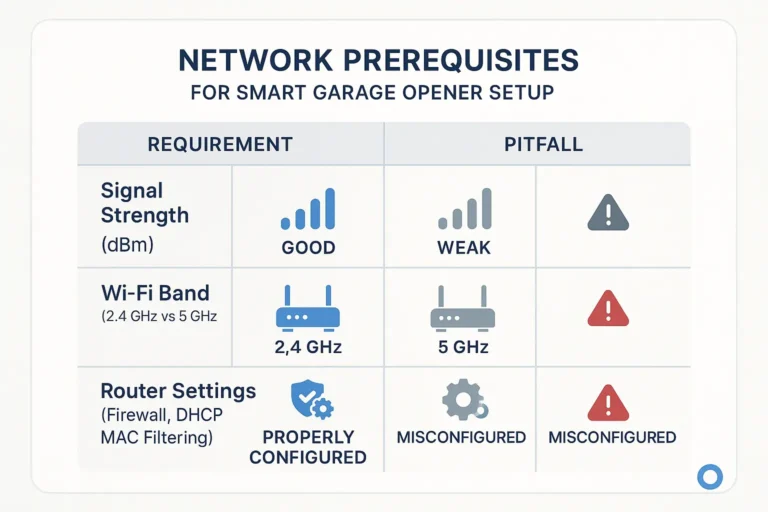
- Check Your Wi-Fi Signal: Garages are notoriously tricky spots for Wi-Fi. Concrete walls and metal doors can block the signal. Before you even start, take your phone to where the hub or opener is located and check your Wi-Fi signal strength. If it's weak, consider moving your router or installing a Wi-Fi extender for reliable performance. Having reliable connectivity is one of the top expert recommendations for smart garage door technology.
Action: The Ultimate Troubleshooting Guide
Even with a perfect setup, you might run into a snag. Here are solutions to the most common multi-door problems.
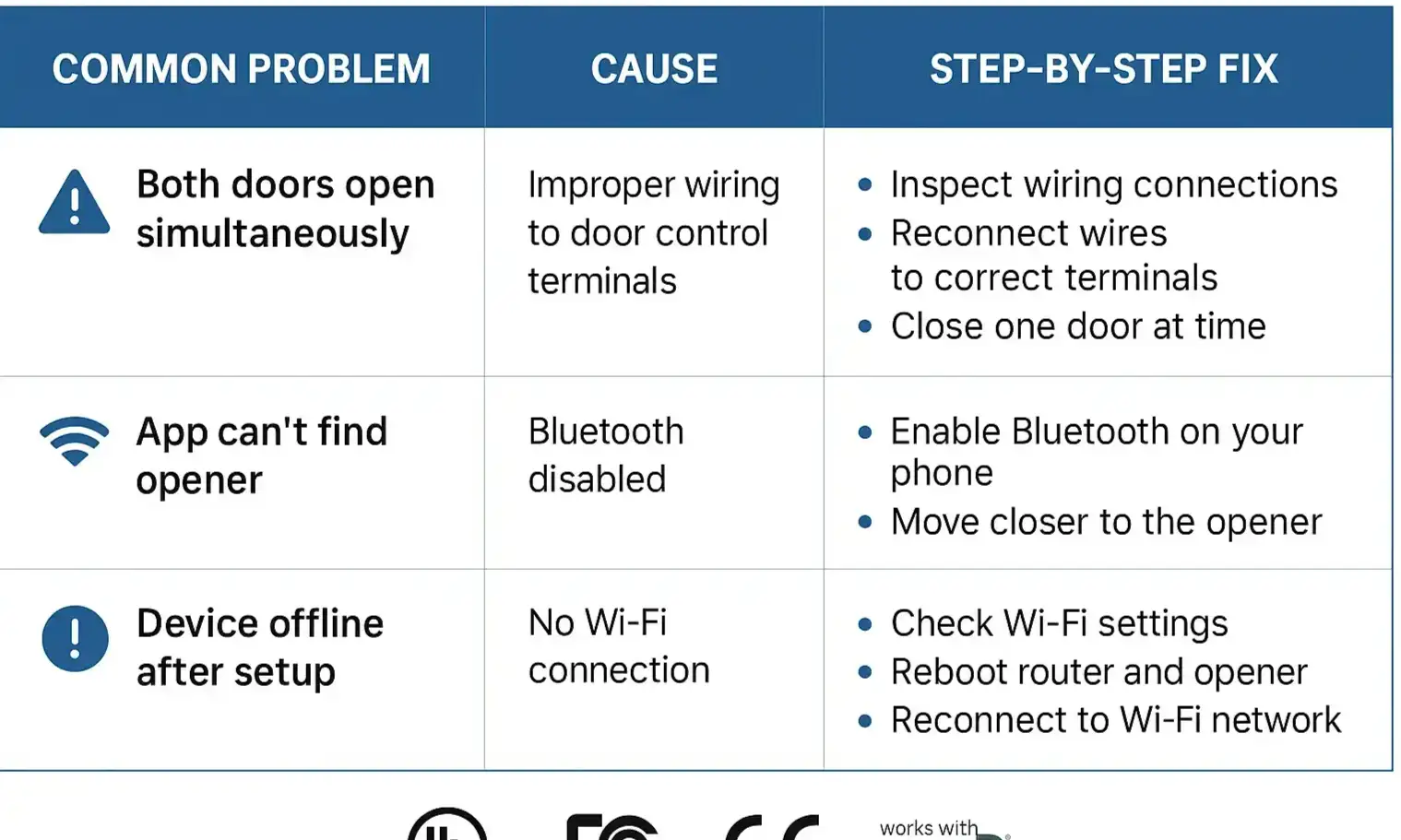
Problem: Both of my garage doors open at the same time!
This is the most frequent issue with the Hub Method.- Cause: You have likely programmed your single smart hub to operate both of your garage door openers. When you send a command, the hub sends the signal, and both motors that are paired to it respond.
- Solution: You need to clear the memory of the opener that was programmed by mistake. Go to the motor unit of the incorrectly paired door and press and hold its "Learn" button for about 6-10 seconds until the LED light turns off. This will erase its memory. Then, re-run the setup process in the app for your second door, making sure to only press the Learn button on the correct motor unit when prompted.
Problem: My second door sensor or opener keeps showing "Offline."
- Cause: This is almost always a connectivity issue. It could be due to a weak Wi-Fi signal in that part of the garage, or the battery in the door sensor might be low.
- Solution: First, test the Wi-Fi signal strength right next to the offline device. If it's poor, you may need a Wi-Fi extender. If it's a door sensor, try replacing the battery. If the issue persists, you may need to delete the device from the app and re-add it. For more general issues, our guide to fix garage door opener problems can be a helpful resource.
Problem: The app can't find my new Wi-Fi opener during setup.
- Cause: The opener may be too far from your Wi-Fi router, or your phone may be connected to a 5GHz network band while the opener can only connect to 2.4GHz (a very common requirement for smart home devices).
- Solution: Move your router closer to the garage if possible, or install an extender. During setup, ensure your phone is temporarily connected to your 2.4GHz Wi-Fi network. Most routers broadcast both, and you can select the correct one in your phone's Wi-Fi settings.
If troubleshooting becomes too complex, professional garage door opener repair services can diagnose and solve the problem efficiently.
Frequently Asked Questions
Can you have more than one garage door on the MyQ app?
Absolutely. The MyQ app is designed to handle multiple garage doors, whether they are connected via a single Smart Garage Control Hub with multiple sensors or are individual Wi-Fi-enabled openers.
How many doors can MyQ control?
A MyQ Smart Garage Hub can control up to two garage door openers. With the addition of a second door sensor, you can manage both from the app. If you are using MyQ-enabled Wi-Fi garage door openers, you can add up to 16 devices to your MyQ account.
What is a smart garage door opener?
A smart garage door opener is a device that connects to your home's Wi-Fi network, allowing you to monitor, open, and close your garage door from anywhere using a smartphone app. It also provides features like activity alerts, scheduling, and integration with other smart home platforms.
Your Path to a Smarter Garage
Managing a multi-door garage doesn't have to be a technical nightmare. By first identifying your hardware setup and then following the correct path, you can achieve streamlined control from a single app. You've now got the knowledge to not only set up your system but also to optimize and troubleshoot it like a pro.
If you find that your equipment is outdated or you'd rather have an expert handle the setup, exploring a professional garage door opener installation service can ensure everything works perfectly from day one.
You may also like